
How to Run AI Offline on Your Android Phone
Get private, free AI chat on-device with TokForge. No internet, no subscription, no data sharing.
TokForge is free. Android is live on Google Play; iPhone and iPad are in public beta on TestFlight. No account, and it works with the network off once a model is downloaded.
Reading on a computer? Check which models fit your phone, or see real measured speeds on the phone-speed leaderboard.
Why Run AI Offline?
Running AI directly on your phone changes everything. Here's what you get:
- Complete privacy. With an on-device model, your conversations never leave your phone. No servers, no logs, no third parties.
- Free. No ads, no in-app purchases, no subscriptions, and no API costs.
- Works without internet. Use AI on airplanes, in mountains, on long commutes, anywhere, anytime.
- You own your data. Every message, every insight stays on your phone. You're in complete control.
This is the opposite of ChatGPT or Claude. Those services are powerful, but they require internet and they see everything you ask them. Offline AI means total independence.
What You Need
Before you start, make sure you have:
- Android phone (Android 8.0 or later, 64-bit ARM) with at least 4GB RAM (8GB recommended)
- Free storage for each model: about 0.6GB for the smallest, 2.8GB for a 4B model, 6.8GB for a 9B
- TokForge app (free from Google Play)
- WiFi to download your first model
That's it. No special hardware, no extra apps, no coding required.
Step-by-Step Setup
Step 1: Install TokForge
Head to the Google Play Store and search for TokForge. Tap "Install" and wait for it to download (a little over 100MB).
Step 2: Pick Your Model
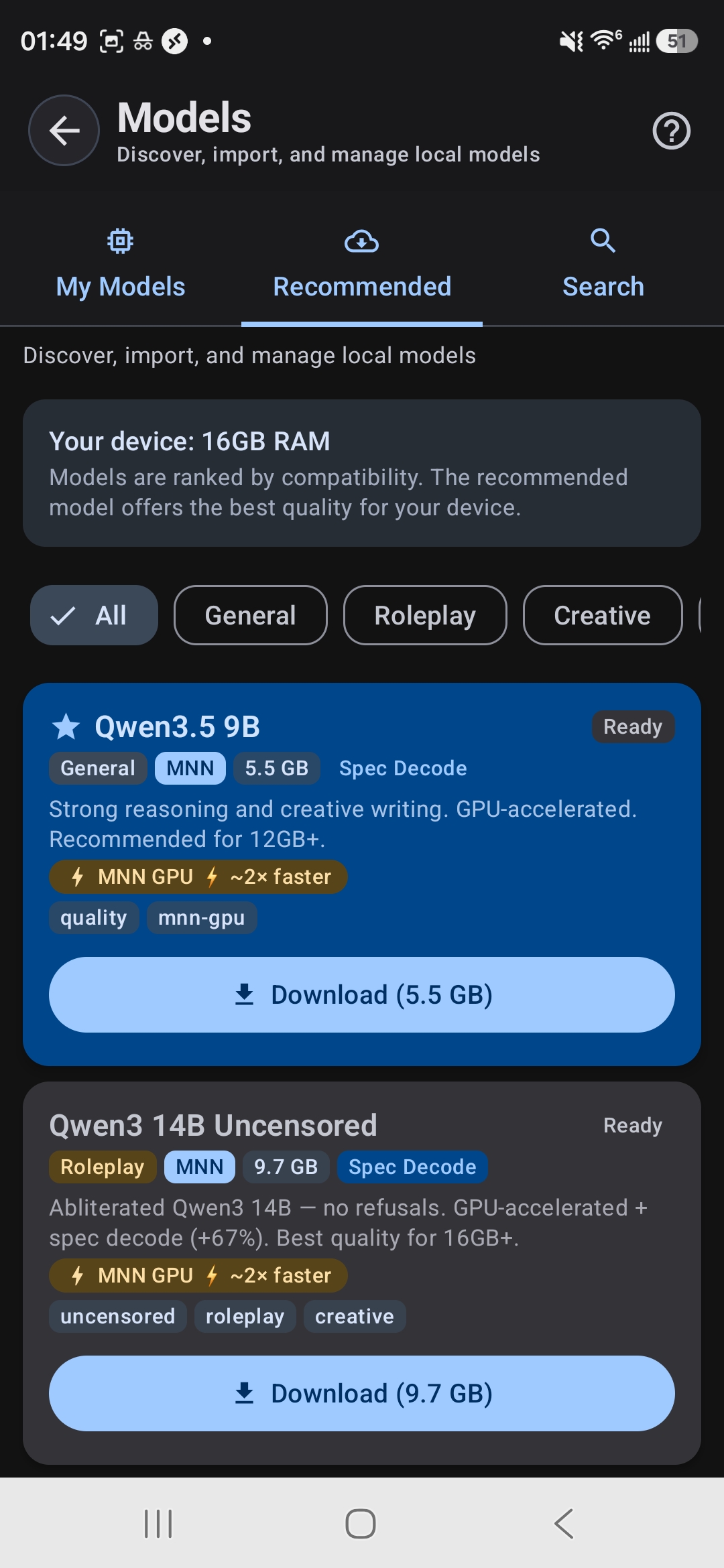
The Model Browser shows which models fit your device's RAM
Open TokForge and go to Model Manager. You'll see a list of AI models. Here's which to pick based on your phone's RAM:
| RAM Tier | Recommended Model | Size | Use Case |
|---|---|---|---|
| 4GB | Qwen3.5 0.8B | 0.6GB | Basic chat, lightweight |
| 6GB | Qwen3.5 2B or Llama 3.2 3B | 1.4 to 2.5GB | General chat, reasoning |
| 8GB | Qwen3.5 4B | 2.8GB | Best balance for most users |
| 12GB+ | Qwen3.5 9B or Llama 3.1 8B | 5.3 to 6.8GB | Complex tasks, nuanced answers |
| 16GB+ | Qwen3.5 9B, or a 12B such as Mistral Nemo | 6.8 to 7.5GB | Maximum quality, professional work |
Not sure about your RAM? Go to Settings > About Phone and look for "Memory" or "RAM." If you're between tiers, pick the smaller model. Better to run smoothly than stutter.
Step 3: Download Your Model
Tap your chosen model. TokForge will begin downloading. The progress bar shows how much is left. Download time depends on the model size and your connection.
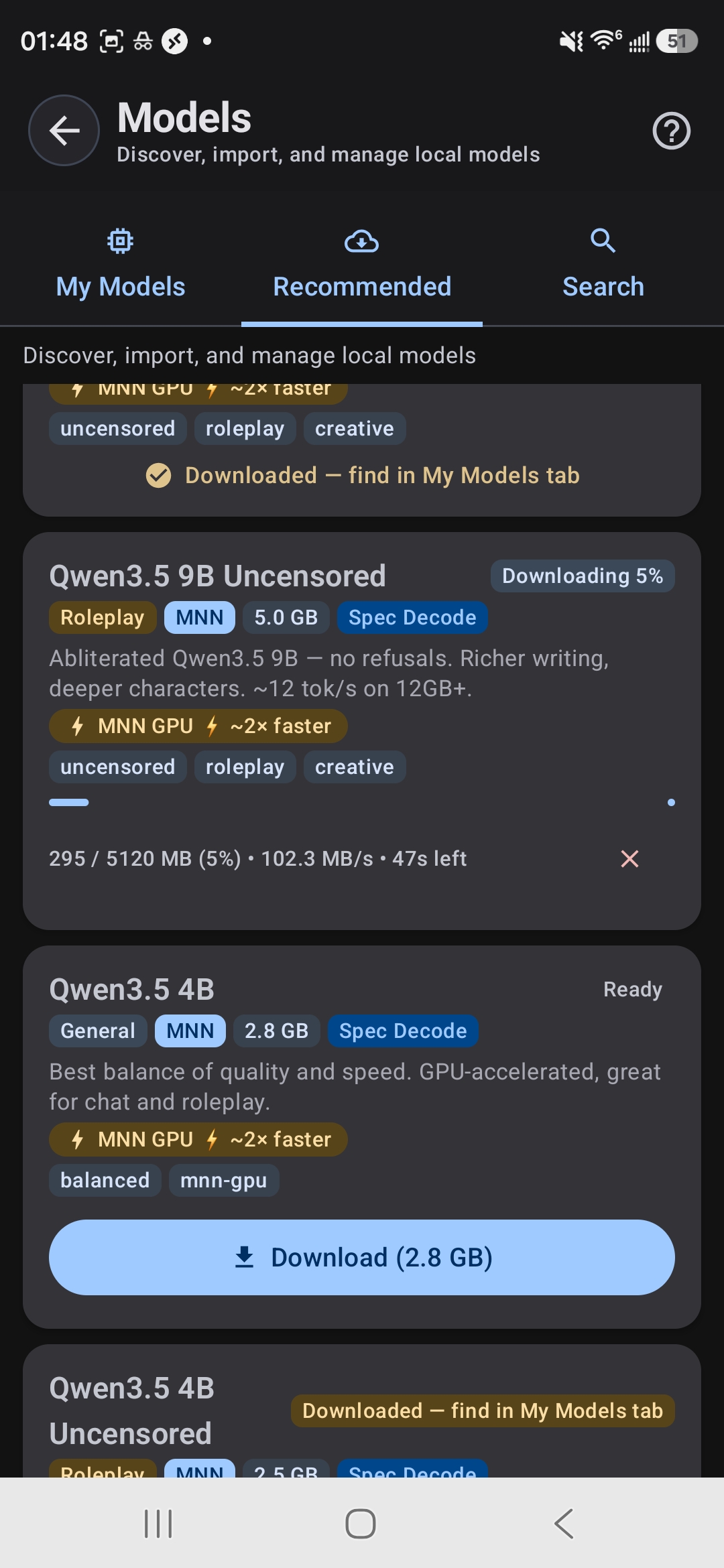
Downloading a model: progress, speed, and time remaining
Tip: Download on WiFi. Using mobile data will be slow and use your plan. Once downloaded, you never need internet again for that model.
Step 4: Start Chatting
Once the model loads (you'll see "Ready" next to its name), pick a character preset or start a blank chat. Type your first message and hit send. TokForge runs inference right on your phone, and you'll see tokens generated in real-time.
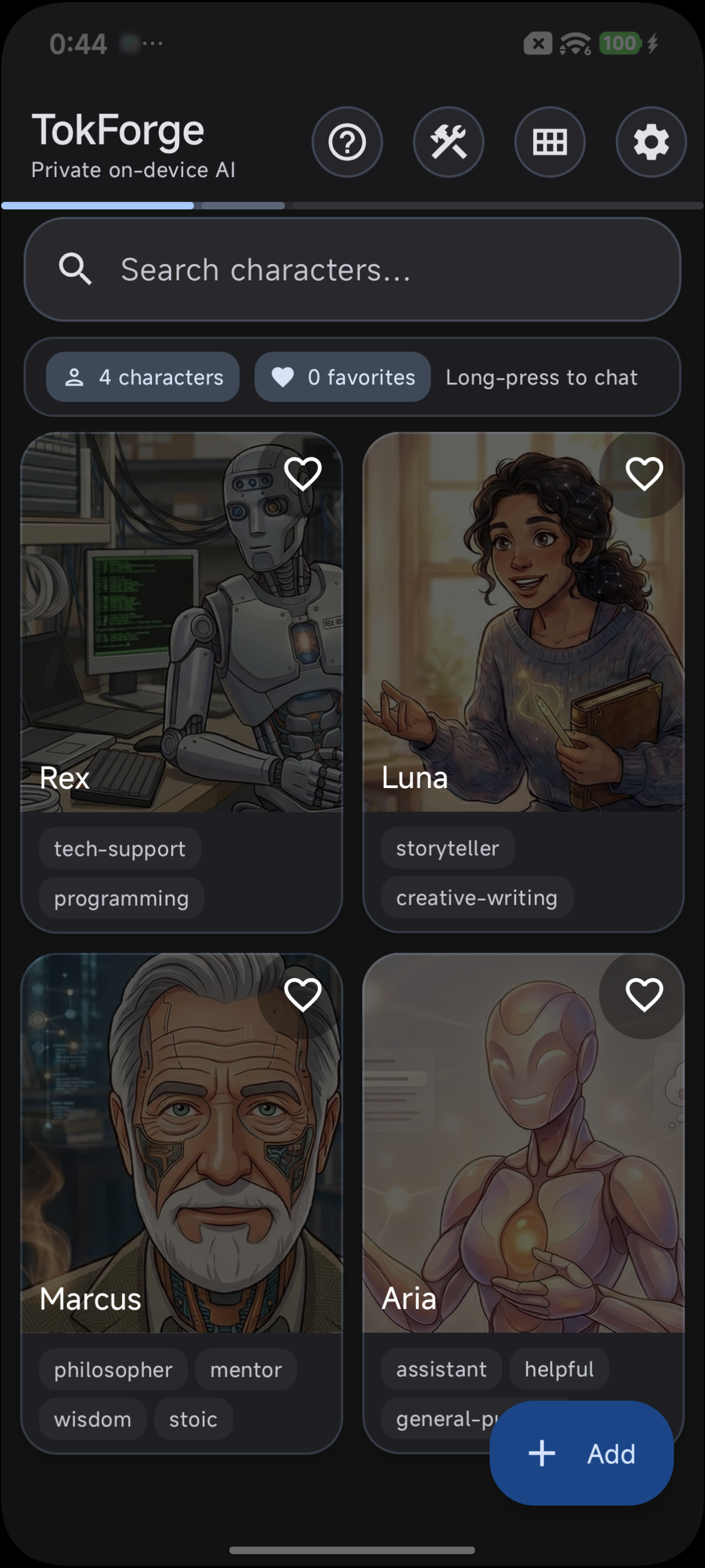
Choose a character or start a blank chat
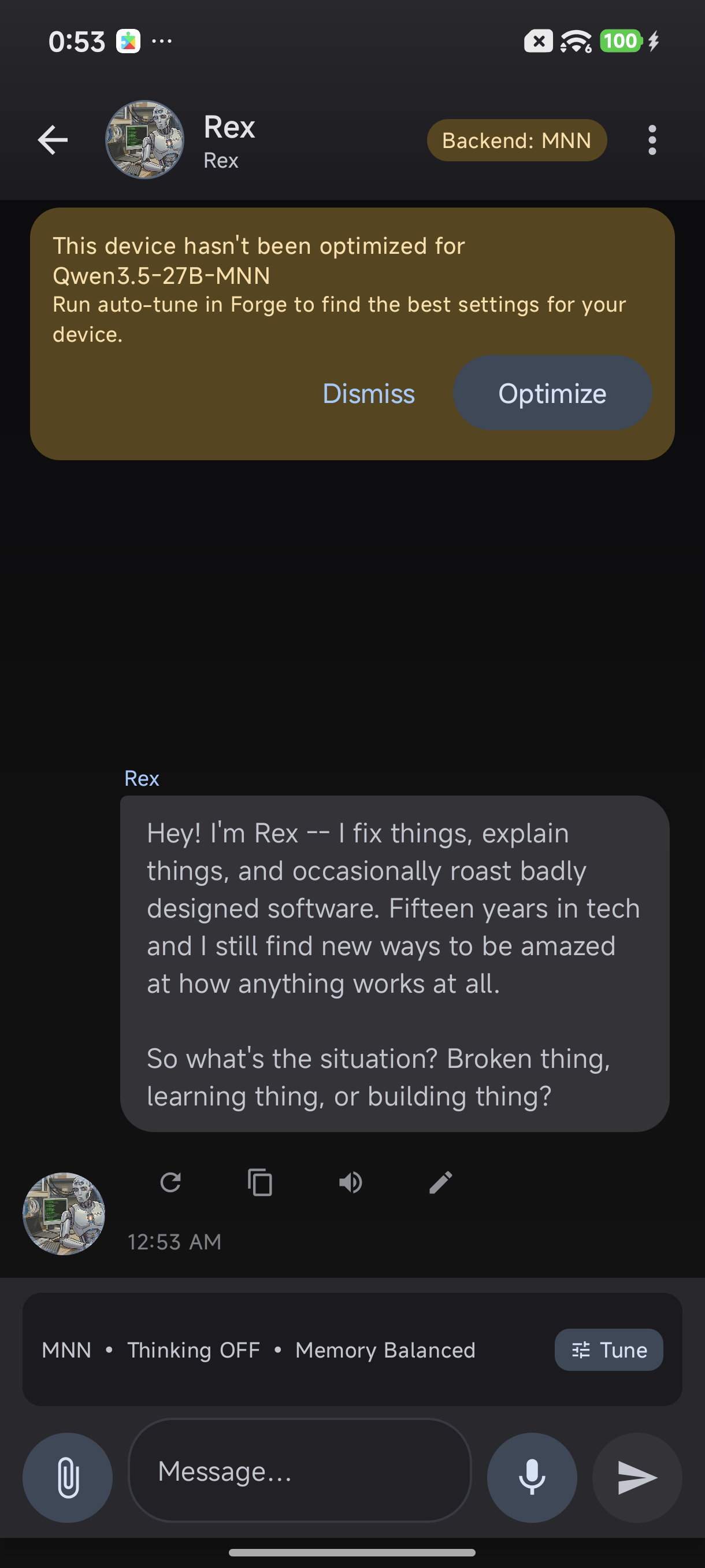
Your first conversation: running entirely on-device
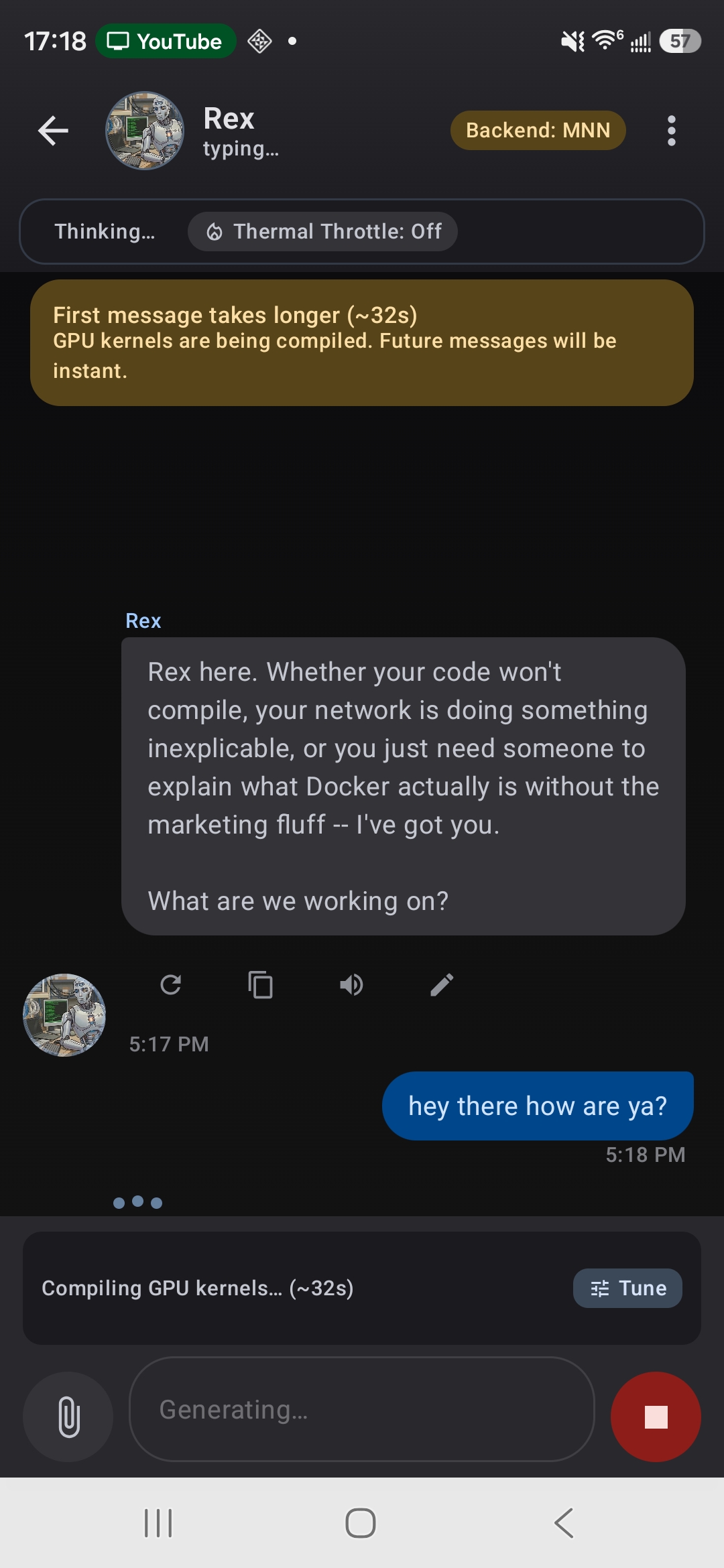
First message compiles GPU kernels: follow-ups are faster
What to Expect
Speed
Generation speed depends on your phone:
- Budget phones (4 to 6GB RAM): small models only, and slower
- Mid-range (8GB): around 4B is comfortable for everyday chat
- Flagship (12GB and up): larger models, and small models feel close to instant
- For actual tokens per second on hardware like yours, see the phone-speed leaderboard. It is submitted from the app on real devices and updates continuously.
The first message takes a few seconds for the model to "warm up" (this is called prefill). Follow-up messages usually start faster.
Quality
Smaller models (0.8B to 2B) are snappy but basic. They're great for quick factual questions and creative writing. Larger models (8B+) understand nuance, can handle complex reasoning, and produce more polished output. For serious work, use at least a 4B or larger model.
Tips for Best Performance
- Try GPU acceleration. On some phones the GPU is faster and on others the CPU wins. AutoForge can test both on your phone.
- Run AutoForge. It tests a few settings on your specific phone and finds the fastest, most stable ones.
- Close background apps. Close browsers, games, or other heavy apps before lengthy conversations. More free RAM = faster generation.
- Use airplane mode to save battery. WiFi and Bluetooth drain power faster than you'd think. Flip airplane mode on when you're in a deep conversation.
- Keep your phone cool. Sustained inference generates heat. If your phone gets warm, take a break, or the CPU will throttle otherwise.
Frequently Asked Questions
Does TokForge use the internet?
Not unless you ask it to. Once you download a model, chat runs completely offline. Nothing leaves your phone unless you turn on a feature that needs the network: web search, the Remote API (your own server) or submitting a result to the leaderboard. All of them are off by default. Otherwise you only need internet to download models.
How good is the AI compared to ChatGPT?
It depends on the model size. A 0.8B or 2B model is a helpful assistant for brainstorming and quick answers. A 4B to 9B model (Qwen or Llama) handles most everyday writing and questions well. None of them match today's large cloud models, especially at hard multi-step reasoning, but for offline use they are genuinely useful.
Will running AI drain my battery?
Running inference uses your CPU or GPU, so yes, it uses more power than scrolling social media. We have not published a battery measurement, so there is no number here. You're not constantly generating, so there's idle time between messages. Enable airplane mode when chatting to save battery.
Can I use my own models?
Yes. TokForge supports importing GGUF and MNN format models. Use Import Model in the Model Manager for a file you already have, or search Hugging Face for GGUF and MNN builds from the Browse tab.
Is there a limit to how many models I can download?
No hard limit, but your storage is the constraint. Each model takes from about 0.6GB to about 21GB depending on size. TokForge loads one chat model at a time, so you can keep as many downloaded as your storage allows.
What if my phone has only 4GB RAM?
You can use Qwen3.5 0.8B or Llama 3.2 1B on 4GB phones. They're tiny and functional. The experience will be slower, but it works. If you have less than 4GB, offline models will struggle because the OS and other apps eat RAM.
Ready to Get Started?
Download TokForge from the Google Play Store and run your first offline AI conversation.
Get TokForge on Google PlayNext Steps
Once you're comfortable with TokForge, check out these guides:
- Can You Use ChatGPT Offline?: What an on-device model can and cannot do compared with a cloud assistant.
- Which AI Models Run On Your Phone: RAM tiers, formats and quantization in one place.
- Model Size Comparison Guide: Which model fits your RAM, with download sizes and what each size is good for.
- AutoForge: Advanced Optimization: Squeeze every ounce of performance from your phone.
- Character Cards Guide: Import Character Card V2 and V3 characters, customize personalities, and build persistent AI companions.
No subscription, no account, no tracking, and no waiting on a server. The model lives on your phone and answers whether or not you have signal.