Vulkan vs OpenCL vs CPU: Which Backend and When
Understand GPU acceleration options and how TokForge auto-detects the fastest path for your device.
Five Acceleration Paths
TokForge doesn't ask you to choose a backend. Instead, ForgeLab auto-detects your chipset's capabilities and selects the fastest path automatically. Here are the five acceleration paths available:
- • CPU: Universal fallback, works on all devices
- • OpenCL: Broad GPU compute across various manufacturers
- • Vulkan: Dedicated GPU path with tuned kernels
- • QNN (Qualcomm Neural Network): Snapdragon NPU/DSP optimization
- • Vulkan CoopMat: Cutting-edge cooperative matrices for the latest Mali GPUs (Dimensity 9400/9300)
These are not backends you manually switch between. TokForge's inference engine handles the selection, and ForgeLab shows you what's running under the hood.
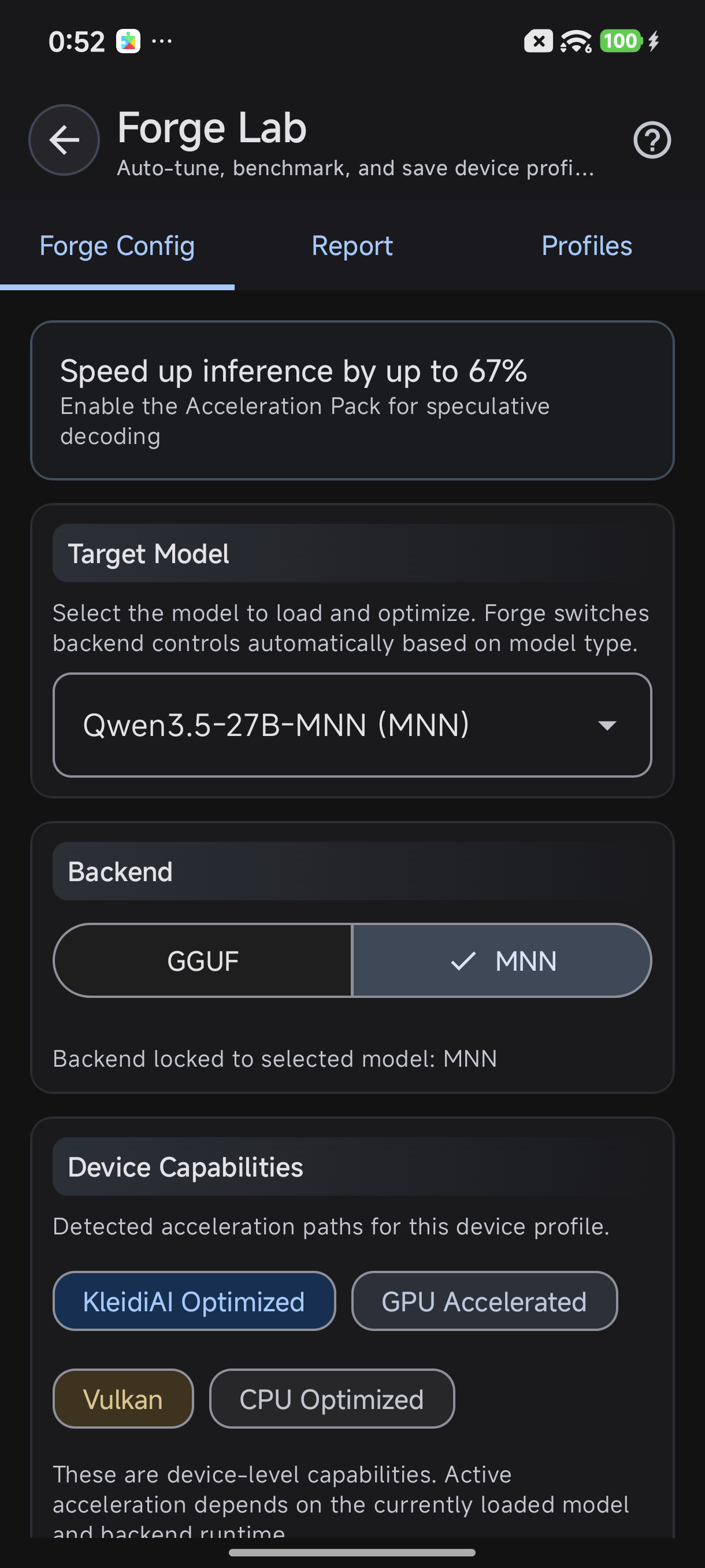
ForgeLab detects your device's GPU capabilities automatically
Two Inference Backends
It's important to distinguish acceleration paths from inference backends. TokForge uses two backends:
- MNN: GPU-accelerated by default, uses any available path (OpenCL, Vulkan, CoopMat, QNN)
- GGUF/llama.cpp: CPU-focused with KleidiAI ARM acceleration for supported chips
The backend you use determines whether the model loads via MNN (GPU optimized) or llama.cpp (CPU optimized). The acceleration path is chosen within that backend.
GPU Path Comparison
Here's how the five paths compare in real-world scenarios:
| Path | Best For | Chipsets | Speed Boost | Notes |
|---|---|---|---|---|
| CPU | Universal fallback | All | Baseline | Always works |
| OpenCL | Broad GPU compute | Adreno, Mali, PowerVR | Varies by device and model | Most compatible GPU path |
| Vulkan | Dedicated GPU | Mali (Dimensity/Exynos), Adreno | Varies by device and model | Best for Mali, tuned NHWC4 GEMV kernels |
| QNN | Snapdragon NPU | Snapdragon 8 Gen 2+ | Variable | Hexagon DSP/NPU, experimental prefill |
| Vulkan CoopMat | Cooperative matrices | Mali (Dimensity 9400/9300) | Up to 3.4x (measured, D9400 3B) | Newest, requires latest drivers |
Which Chipset Uses What
Device manufacturers use different SoCs (System-on-Chip). Here's how TokForge handles each major category:
Snapdragon 8 Gen 3 / 8 Elite
Latest flagship from Qualcomm. TokForge prioritizes:
- Vulkan CoopMat if drivers support it (newest phones with latest updates)
- OpenCL as primary fallback
- QNN for prefill experimentation (optional)
Snapdragon 8 Gen 2
Still prevalent in 2024-2025 flagships. Uses:
- OpenCL or Vulkan depending on driver availability
- CPU fallback stable and reasonable on this tier
MediaTek Dimensity 9400 / 9300
Premium MediaTek. Excellent Vulkan support:
- Vulkan is the primary path (Mali-G925/G925 GPU)
- Measured up to 3.4x over CPU on a 3B model (about 2x on 8B) with GGUF Vulkan CoopMat
MediaTek Dimensity 8000 Series
Mid-range MediaTek. Best performance:
- OpenCL if 8GB+ RAM available
- CPU with KleidiAI for budget memory configurations
Exynos 2400 / Samsung Flagship
Samsung's in-house flagship chip (Galaxy S24 series):
- Vulkan (Mali GPU, excellent support)
- Performance tier similar to Dimensity 9400
Budget & Mid-Range Phones
Snapdragon 6-7 series, Dimensity 6000-7000:
- CPU with KleidiAI (GGUF backend) if 4GB RAM
- OpenCL if 8GB+ RAM available
- GPU paths less optimized on budget hardware
KleidiAI: ARM CPU Acceleration
Not all devices have strong GPU support. That's where KleidiAI comes in. It's ARM's CPU-side acceleration for mobile inference.
What Does KleidiAI Do?
KleidiAI accelerates the i8mm (integer 8-bit matrix multiply) instruction set available on ARM Cortex-A78 and newer. When available, it provides:
- Faster prefill on supported chips compared to vanilla CPU; gains vary by model and quantization
- Compatible with GGUF models using Q4_0 quantization
- No GPU power draw: good for sustained inference
When to Use KleidiAI
KleidiAI is the default path when:
- GPU paths aren't available or reliable
- Running on budget phones (sub-$300)
- You need power efficiency over absolute speed
- Models are quantized to Q4_0 or lower
In the GGUF backend, just load a Q4_0 quantized model and KleidiAI activates automatically on supporting chips.
How to Check Your Acceleration Path
Curious what your device is running? ForgeLab shows it:
- Open TokForge app → ForgeLab
- Go to Device Capabilities tab
- View all detected acceleration paths in order of priority
- Run a test benchmark to see which was actually used
- Check the Benchmark Report: it shows the exact backend and path
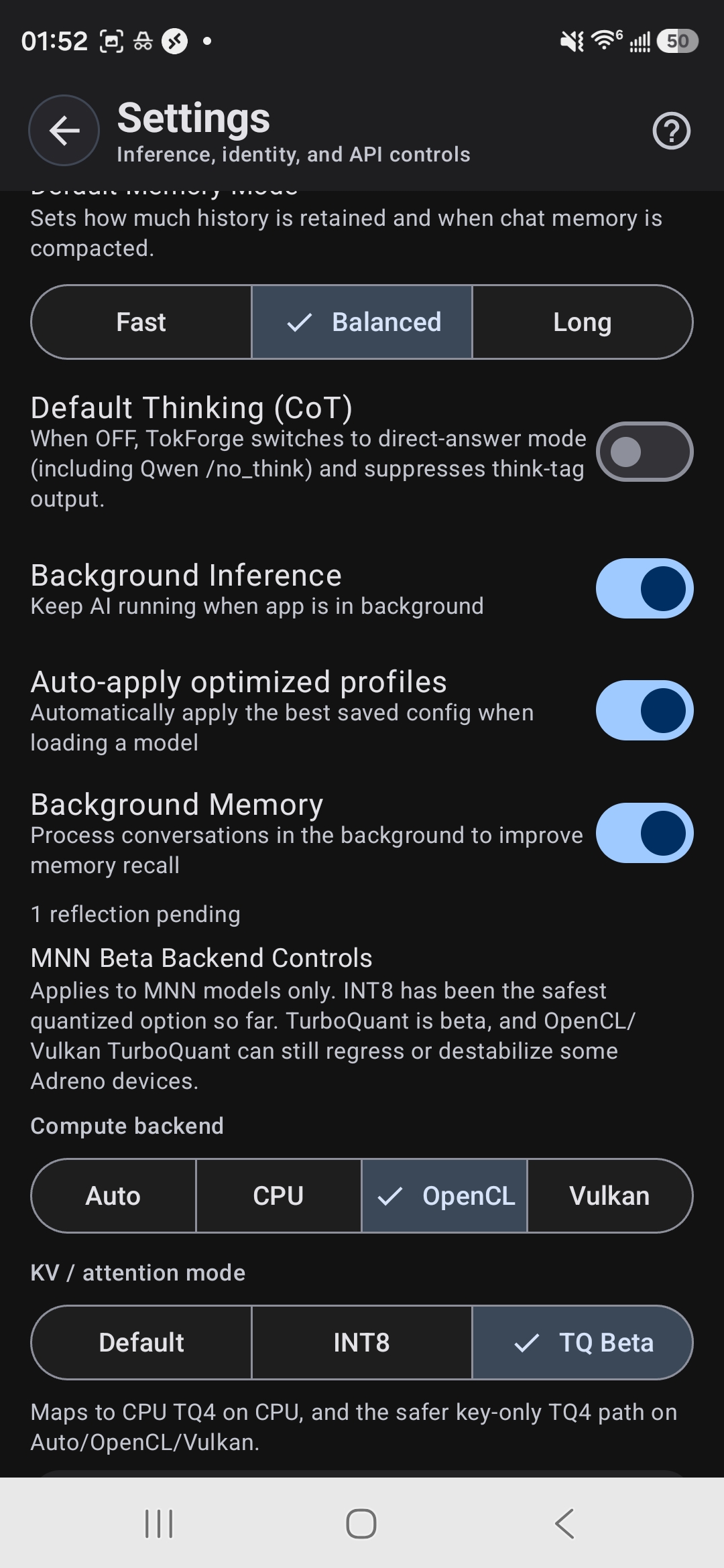
MNN Backend Controls: choose between Auto, CPU, OpenCL, or Vulkan
Real-World Performance Numbers
Theory is fine, but what do real phones actually achieve? Here's concrete data:
Example: MediaTek Dimensity 9400 with Vulkan CoopMat
Running GGUF models on the cooperative-matrix Vulkan path (measured):
- 3B model: 16.85 tok/s, about 3.4x over CPU
- 8B model: 8.07 tok/s, about 2x over CPU
Results vary widely by chipset; on many mid-range and budget devices the CPU path wins, which is why TokForge benchmarks instead of assuming.
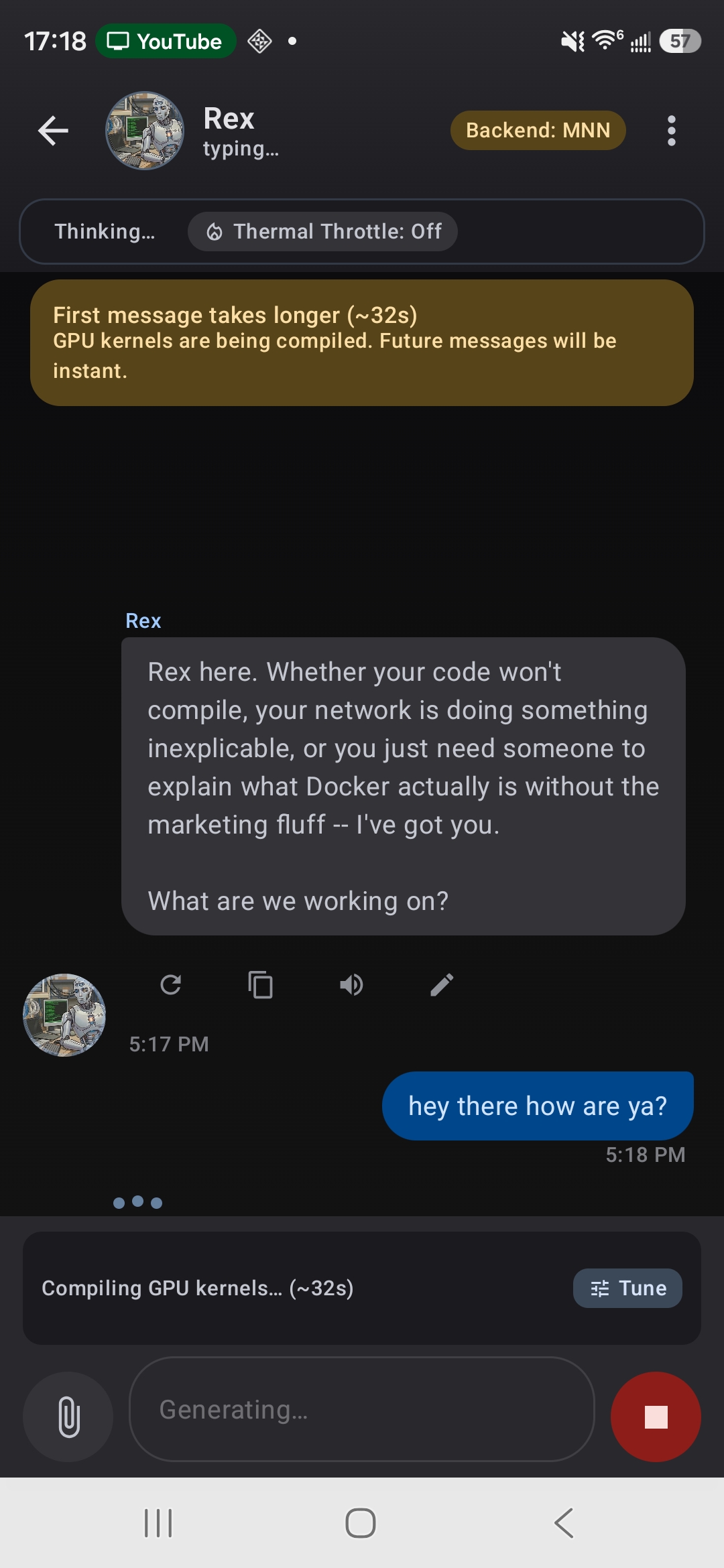
First message compiles GPU kernels, subsequent messages are instant
Prefill vs Decode Speed
GPU acceleration helps both, but especially prefill (the first token):
- GPU Prefill: Much faster (entire input processed in parallel)
- GPU Decode: faster than CPU on supported devices; varies by model size
- KleidiAI Prefill: faster than vanilla CPU on supported chips
Don't Overthink It
Here's the reality: TokForge auto-selects for you. You don't need to:
- Memorize which path is best for your chipset
- Install special drivers
- Tweak low-level settings
- Recompile anything
Just open the app, load a model, and inference begins on the fastest available path. If you're curious about performance tuning, run AutoForge once. It benchmarks your device and shows you the detailed results. That's it.
Most users never manually change backends. TokForge's auto-detection works well because it's been tuned across thousands of real-world devices.
Learn More
Interested in deeper optimization? Check out these related guides:
- AutoForge Guide: Automate device profiling and optimization
- TurboQuant Guide: Quantization techniques for faster inference
- Full Documentation: Deep dives into MNN and llama.cpp backends
Ready to Start?
Get TokForge on your Android device and experience GPU-accelerated AI inference.