Getting the Most Speed Out of Your Device with AutoForge
What is AutoForge & ForgeLab?
AutoForge is TokForge's built-in benchmarking and auto-tuning system. Think of it as a performance coach for your phone. It profiles your device's specific hardware, tests different GPU acceleration paths (CPU, OpenCL, Vulkan, QNN, Vulkan CoopMat), and automatically picks the fastest configuration for you. One tap. No guesswork.
ForgeLab is the control center where you can run benchmarks, view results, and manage saved inference profiles. It's where the magic happens.
Why Auto-Tuning Matters
Here's the reality: different chipsets perform wildly differently. A Snapdragon 8 Gen 3 might absolutely fly with Vulkan GPU acceleration, while a Dimensity 9400 might be faster with OpenCL. A mid-range Helio G85 might prefer CPU-only to avoid memory contention. Without profiling, you're just guessing.
AutoForge tests your specific hardware and finds the sweet spot. The impact is real:
- Going from CPU-only to the right GPU path measured up to 3.4x faster inference on our benchmark fleet (device and model dependent; sometimes CPU wins)
- Proper thread tuning can unlock further measurable gains
- Memory allocation tweaks prevent slowdowns from GC pauses
How to Run AutoForge (Step by Step)
1. Access ForgeLab
- Open TokForge on your device
- Tap the ⚡ lightning bolt icon in the main interface, or navigate to Settings → ForgeLab
- You'll see the ForgeLab dashboard with three tabs: Forge Config, Report, and Profiles
2. Review Forge Config
The Forge Config tab shows your device's current setup:
- Target Model: which model AutoForge will benchmark
- Backend: current inference backend (CPU, OpenCL, Vulkan, QNN)
- Device Capabilities: what accelerators your phone supports (see "Device Capabilities Explained" below)
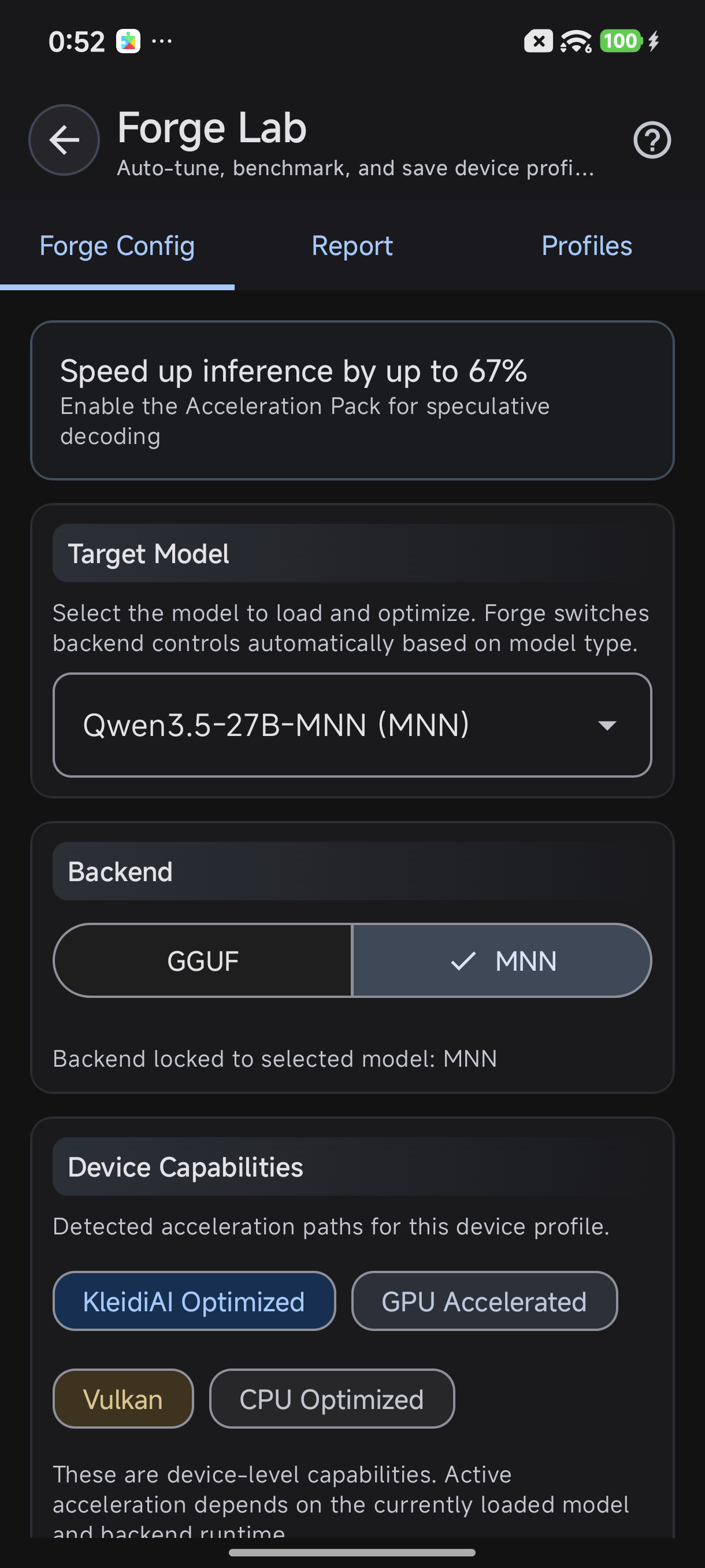
ForgeLab: Forge Config shows your target model, backend, and device capabilities
3. Launch Auto-Tune
Tap the "Auto-Tune" button. TokForge will:
- Run a series of benchmarks with different settings
- Test various combinations:
- Thread counts (1, 2, 4, 8, all cores, etc.)
- GPU backends (if available)
- Memory allocation strategies
- Quantization modes (int8, fp16, etc.)
- Duration: typically 2 to 5 minutes depending on your device and model size
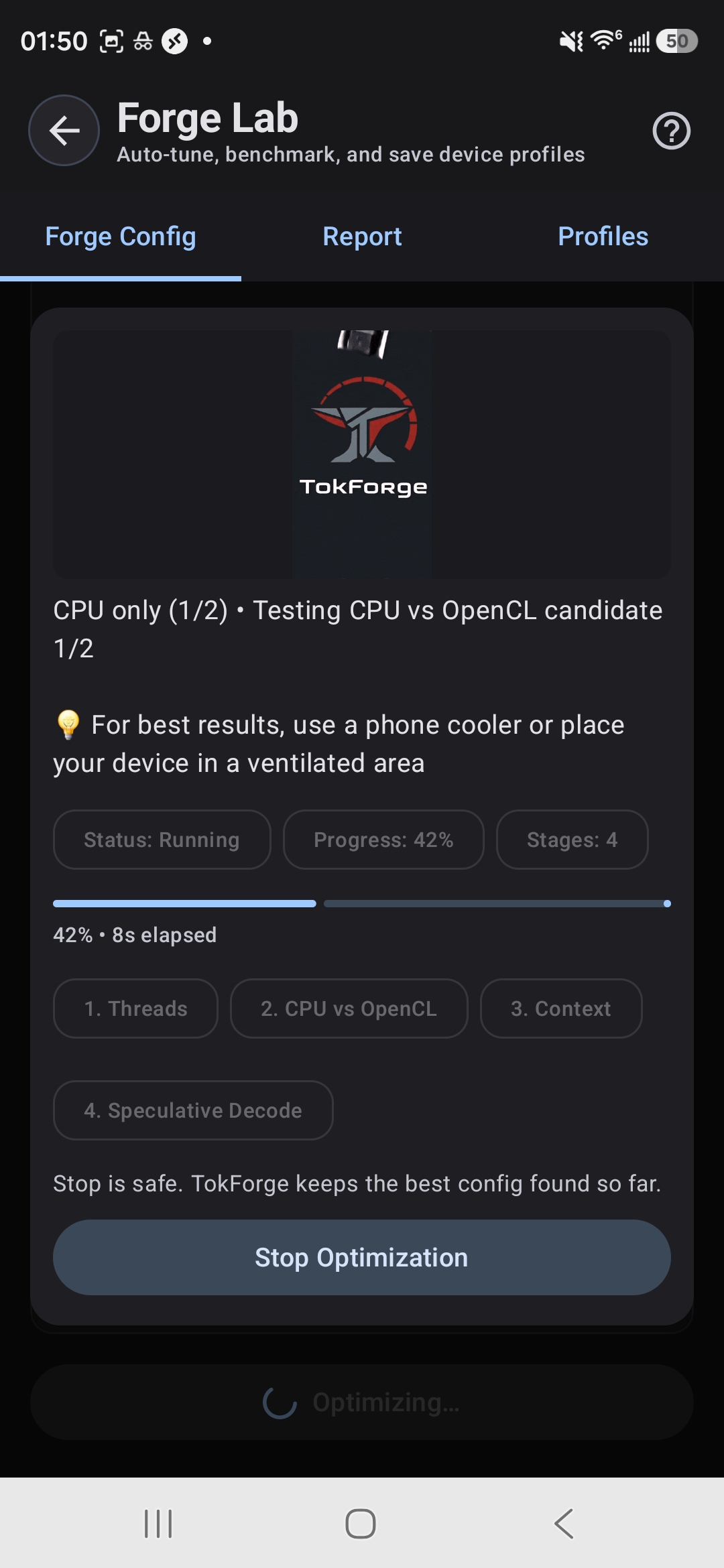
AutoForge tests threads, GPU backends, context, and speculative decoding
Pro tip: Run auto-tune after a fresh reboot for the cleanest results. Close all background apps and let your device settle for a minute before starting.
4. Review Results & Auto-Save
Once benchmarking completes, AutoForge automatically picks the best configuration and saves it as your default profile. Switch to the Report tab to see detailed results including token throughput, latency, and memory usage.
Understanding the Results
The benchmark report shows several key metrics. Here's what they mean:
| Metric | What It Means | Target |
|---|---|---|
| tok/s (tokens/sec) | How many tokens your device generates per second. Higher is better. | 10+ is comfortable for chat; 30+ is excellent |
| Prefill Speed | How quickly TokForge processes a long input prompt in one batch | Faster prefill = snappier responses to long questions |
| TTFT | Time to first token: delay before the first response word appears | Lower is better (<1s is great; <3s is acceptable) |
| Memory (Peak) | Maximum RAM used during inference | Stay under your device's free RAM to avoid crashes |
The Report tab displays all these metrics for each configuration tested. AutoForge highlights the winning config in green.

Benchmark Report: compare results across configs and models
Device Capabilities Explained
TokForge detects what hardware acceleration your device supports. Understanding these helps you interpret benchmark results:
KleidiAI Optimized
ARM-specific CPU acceleration using the i8mm instruction set. Available on recent Snapdragon and MediaTek chips (Gen 3 and newer). Can speed up prompt processing (prefill) on compatible devices compared to vanilla ARM NEON. AutoForge will test this automatically.
GPU Accelerated (OpenCL & Vulkan)
Your device's GPU can run inference. Vulkan can be faster and more power-efficient than OpenCL on some phones, especially certain ARM Mali GPUs. AutoForge tests both and picks the winner.
Vulkan CoopMat
Advanced GPU compute extension for cooperative matrix operations. Only on newer flagships (for example Dimensity 9400/9300). When available, it can significantly speed up matrix multiplications; we measured up to 3.4x end-to-end on a 3B model on Dimensity 9400. AutoForge includes this in benchmarking.
CPU Optimized (Fallback)
Works on every device. No GPU needed. Slower than accelerated modes but reliable and power-efficient for smaller models.
Saved Inference Profiles
The Profiles tab lets you save and switch between multiple configurations. Create profiles for different use cases:
- Speed Profile: Smaller model + aggressive GPU settings. Best for quick responses, runs hot.
- Quality Profile: Larger model + balanced GPU settings. Better reasoning and creativity, slightly slower.
- Battery Saver: CPU-only, lower thread count, smaller model. Great for light tasks on unplugged devices.
Tap any saved profile to activate it instantly. Your last-used profile is auto-loaded when you open TokForge next.
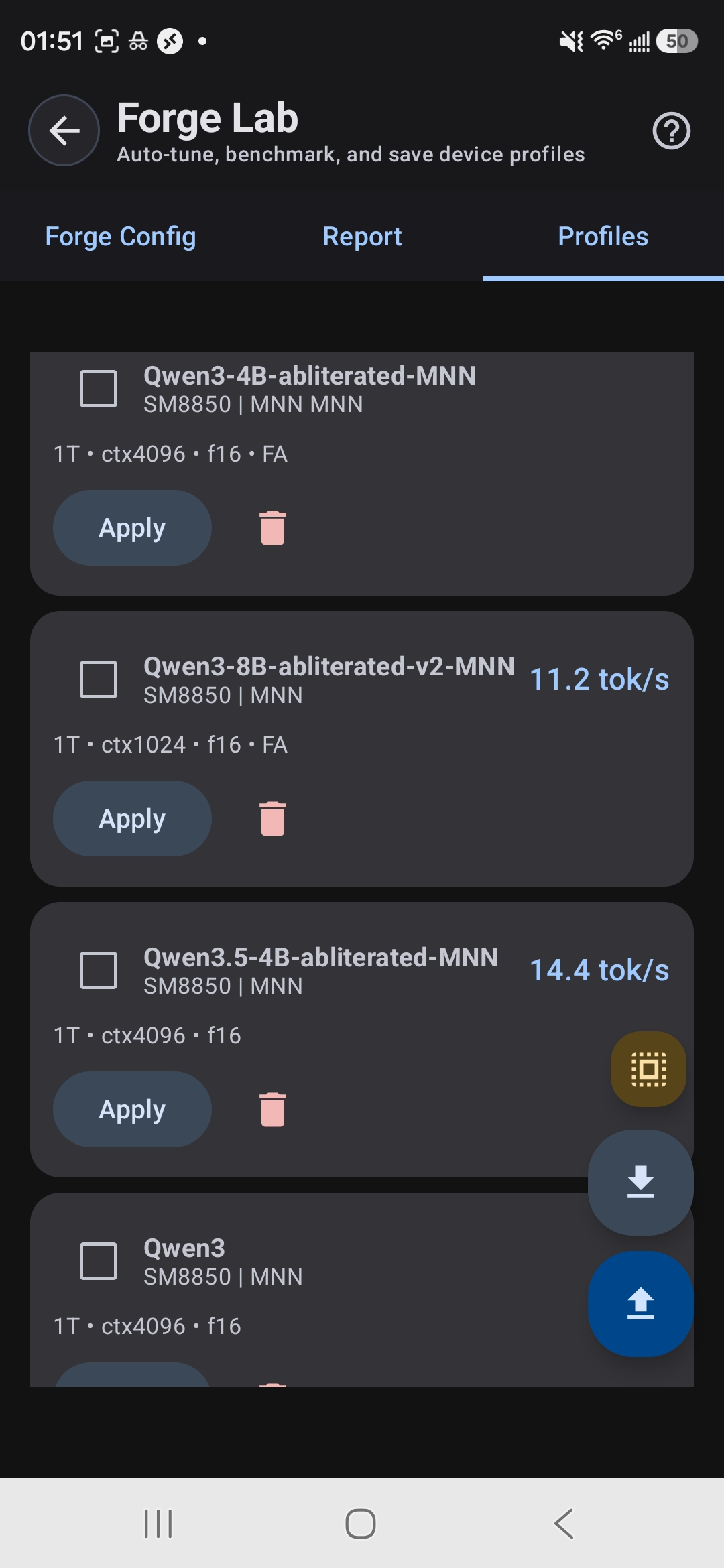
Saved profiles with per-model tok/s: apply with one tap
Pro Tips for Best Results
- Reboot before auto-tuning. A fresh restart clears cached processes and gives you the clearest benchmark signal.
- Close background apps. Music, social media, system updates: they steal CPU and RAM. Close them before running benchmarks.
- Monitor thermal throttling. If your phone gets hot, AutoForge may issue a "thermal throttle" warning. Let your device cool down and re-run the benchmark. Thermal throttling skews results and real-world performance.
- Re-run after OS updates. Android updates sometimes change GPU drivers or kernel scheduling. Re-run AutoForge after major updates to catch new optimizations.
-
Export detailed results. The ForgeLab API endpoint (
/api/benchmarks/export) gives you per-test data in JSON for deeper analysis. - Test with real workloads. Benchmarks show peak performance; real chat and reasoning workloads vary. Use profiles as a starting point and fine-tune based on feel.
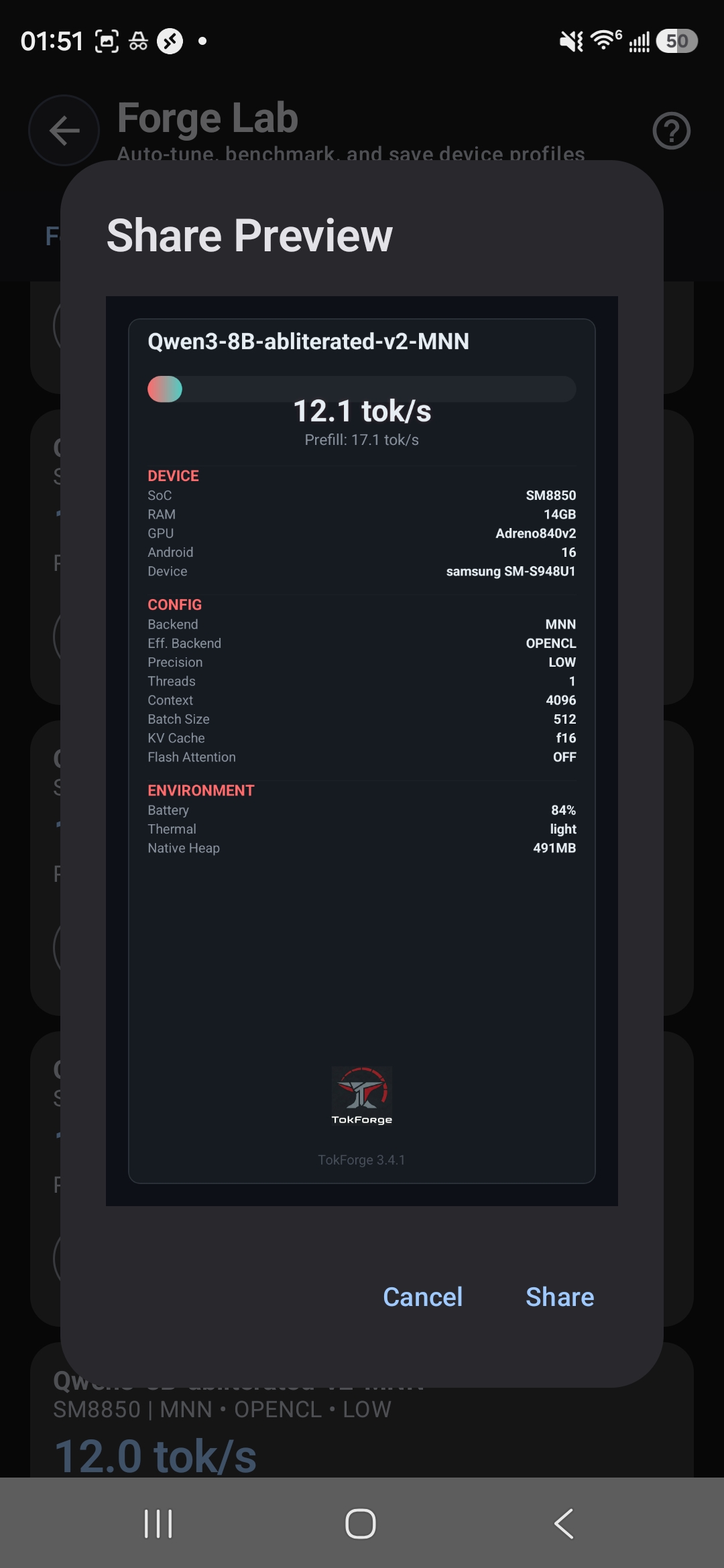
Share benchmark cards with full device and config details
Next Steps
After running AutoForge, you've unlocked your device's potential. Now explore:
- Model selection: How to choose between models for speed vs. quality (see our Backend Comparison Guide).
- Quantization: How TurboQuant shrinks models and speeds up inference further (see our TurboQuant Guide).
- API integration: How to use ForgeLab programmatically to build custom benchmarking workflows.
Ready to Optimize?
Download TokForge and run AutoForge on your device right now. One auto-tune session will show you exactly how fast your phone can go.