
Speculative Decoding
TokForge is free. Android is live on Google Play; iPhone and iPad are in public beta on TestFlight. No account, and it works with the network off once a model is downloaded.
Reading on a computer? Check which models fit your phone, or see real measured speeds on the phone-speed leaderboard.
Overview
Speculative decoding can make replies faster on some phones. Instead of the main model writing one token at a time, a small draft model guesses a few tokens ahead and the main model checks those guesses together. When the guesses are good, you get accepted tokens faster. When they are not, it can be slower than normal decoding, which is why TokForge keeps it off by default.
The Simple Version
A lightweight draft model predicts what comes next. The main model then checks those predictions at once, keeps the ones that are correct, and rejects the others. The main model checks every guess, so answers stay just as accurate.
It needs the optional Acceleration Pack, a separate small download. With the pack installed, TokForge turns speculative decoding on automatically only on phones and models where it measured faster than normal decoding.
How Fast Is It?
Real-world results vary by device, model, and workload. Dense Qwen3 models with the Acceleration Pack are where the gain shows up, on the phones listed under Device Compatibility. How large it is depends on the device, the model and the text being written; the live leaderboard records what real handsets do. Highly structured output such as lists or counting can see larger gains than prose, and some device and model combinations are slower with it.
On other hardware: on many phones, including some recent flagships, speculative decoding measured slower than normal decoding. TokForge does not turn it on automatically there, because we don't want slower inference.
Performance varies by:
- Device hardware (SoC, RAM, thermal conditions)
- Model size and architecture
- The kind of text being written (structured output vs. prose)
- Where the main model runs (CPU or a GPU path)
Some devices benefit more than others, and some not at all.
How It Works For You
Setup: The Acceleration Pack
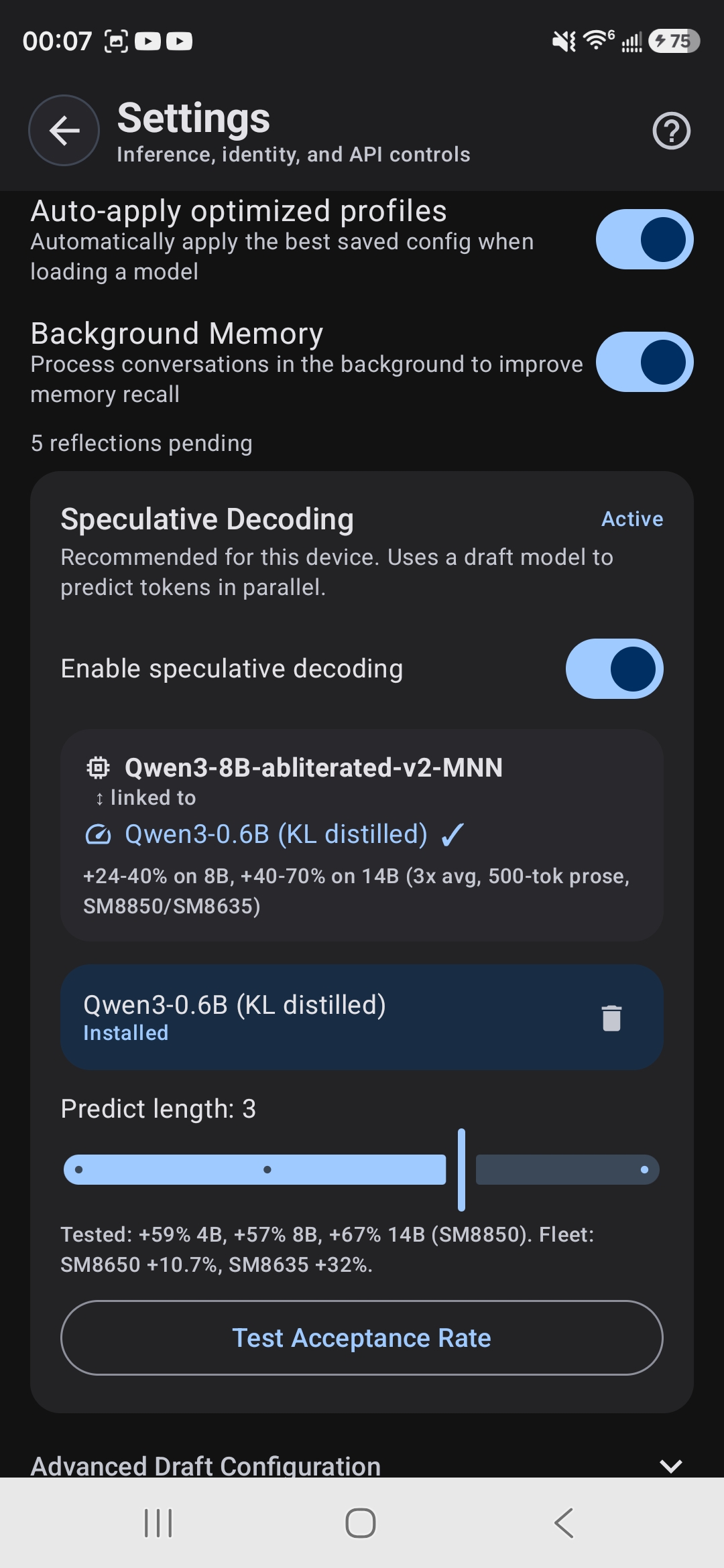
Speculative decoding needs a small draft model to run alongside your main model. TokForge packages it as the Acceleration Pack, a separate, optional download. When you have a compatible model, the Models screen shows a Speed up with Acceleration Pack card, and first-run setup may offer it as Faster replies.
The draft model is a small download compared with the main models it pairs with.
Enable & Disable
Spec decode is off by default. With the Acceleration Pack installed, TokForge turns it on automatically only for the phone and model combinations where it measured faster than normal decoding. When it is in use:
- The model card for the loaded model says spec decode is active
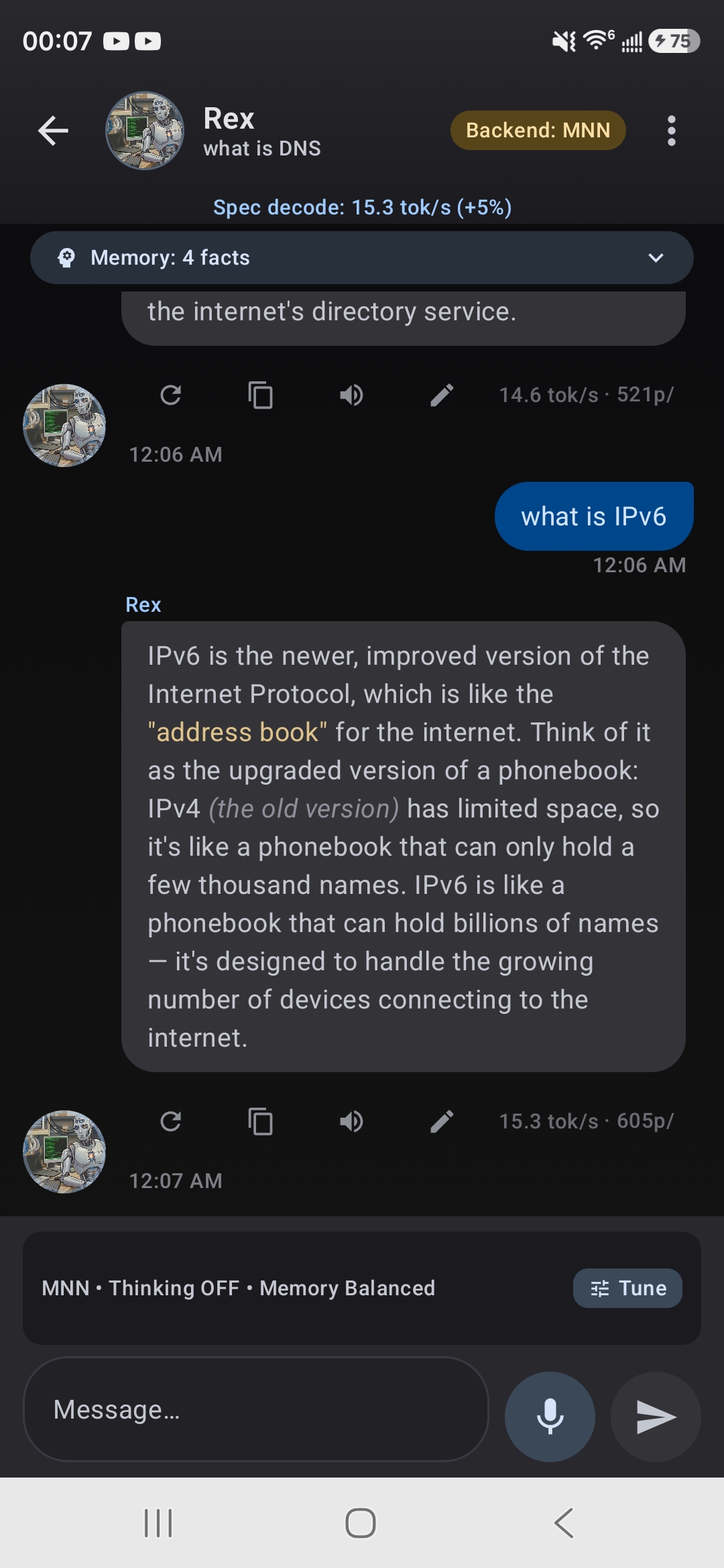
- The chat shows a Spec Decode chip with the live speed
How TokForge Decides
The automatic choice comes from measurements on real phones. Spec decode is switched on by default only where an A/B test on that chip, engine and model size showed it faster than normal decoding, and no newer measurement contradicts it. You can also test it on your own phone:
- Open AutoForge and pick the Thorough or Most thorough tier
- For a compatible MNN model with the Acceleration Pack installed, AutoForge compares spec decode against normal decoding
- Review the result, then tap Apply Config only if you want it
Supported Models
Which Models Work?
Speculative decoding works with Qwen3 4B, 8B and 14B models in MNN format, such as the abliterated Qwen3 builds in the catalogue. Qwen3.5 and other model families run normally without it.
Check the model card in the app for the Spec Decode badge.
What the Badge Means
When you see the Spec Decode badge on a model card, it means:
- The model is compatible with speculative decoding
- The Acceleration Pack is installed on your phone
- Whether it is used for that model on your phone still depends on the measured defaults described below
Device Compatibility
Supported Devices
Turned on automatically (measured faster):
- MediaTek Dimensity 9400 class: Qwen3 8B and 14B, running on the CPU
- MediaTek Dimensity 9300 class: Qwen3 8B and 14B, running on the CPU
- Snapdragon 7s Gen 3: Qwen3 4B, running on the CPU
Everywhere else: off by default. Speculative decoding helps only when the phone can check several guessed tokens faster than it can write them one by one, and on many phones it cannot.
Automatic Enable/Disable
TokForge decides per phone, engine and model. With the Acceleration Pack installed, it turns spec decode on automatically only for the combinations above. Everywhere else it stays off by default, because we don't want slower inference.
You can still test it on your own phone with AutoForge, as described above.
Multiple Backends
Speculative decoding is used with MNN models:
- Draft model: always runs on the CPU
- Main model, automatic defaults: runs on the CPU in every combination listed above
- Main model, AutoForge tests: can also be tested on a GPU path, depending on the phone
Why It Is Not Always On
Speculative decoding only pays off when checking a batch of guessed tokens costs less than writing them one at a time. On a phone, the draft model competes with the main model for memory bandwidth, and wrong guesses waste work.
Real-world impact: on many phone and model combinations, the plain path already beats the draft-verified path. That is exactly why TokForge measures both and keeps the faster one, instead of forcing spec decode on.
Settings & Controls
What You Control
- Install or skip the Acceleration Pack. Speculative decoding never runs without it.
- Test it with AutoForge. The Thorough and Most thorough tiers compare it against normal decoding on your phone, and you choose whether to apply the result.
On the Model Card
- The Spec Decode badge appears on compatible models once the Acceleration Pack is installed
- When spec decode is in use for the loaded model, the card says so
Acceleration Pack Card
When a compatible model is installed and the pack is not, the Models screen shows a Speed up with Acceleration Pack card. Tap it to download the draft model, or dismiss it.
Live Speed Indicator
When spec decode is in use, the chat shows a Spec Decode chip with the live tokens-per-second rate, so you can see it working as tokens are generated.
FAQ
Does speculative decoding affect output quality?
No. The draft model proposes tokens; the main model verifies and accepts or rejects them. Only tokens that pass verification are included in your response, so answers stay just as accurate.
Does it use more RAM?
Yes. The draft model stays in memory alongside the main model. It is small compared with the main models it pairs with, but on a phone that is short on memory, it is one more reason to leave the pack off.
Can I avoid speculative decoding?
Yes. It only runs when the Acceleration Pack is installed. If you don't want it, skip the pack when it is offered.
What if my device doesn't benefit from spec decode?
Then it stays off by default. Models still download and run normally. Spec decode is purely optional acceleration.
How much disk space do I need for spec decode?
The Acceleration Pack is a small download, a fraction of the size of the main models it pairs with.
Does spec decode work with every model?
No. It works with Qwen3 4B, 8B and 14B models in MNN format. Other models run normally without it.
Can I configure draft-target model pairs?
Not manually. TokForge pairs each compatible Qwen3 model with the Acceleration Pack's draft model automatically.
Is there a performance penalty if spec decode guesses wrong?
Yes, it can be. Wrong guesses are rejected and the main model writes the correct token, so the answer is never affected, but the wasted work can make replies slower than normal decoding. That is why TokForge turns it on automatically only where it measured faster.
Do I need to download anything extra?
Yes. The draft model is the Acceleration Pack, a separate download. The Models screen offers it when you have a compatible model.
What's the battery impact?
We have not measured battery use separately. Because TokForge only turns spec decode on automatically where it measured faster, it does not run by default where it would make replies slower.
Can I view metrics for spec decode?
Yes. When spec decode is in use, the chat shows a Spec Decode chip with the live tokens-per-second rate. For deeper comparisons, run a benchmark in AutoForge.